-
Distributing requests between servers
-
Improving performance
-
Providing a failover server
In a load balanced environment, consider the following:
-
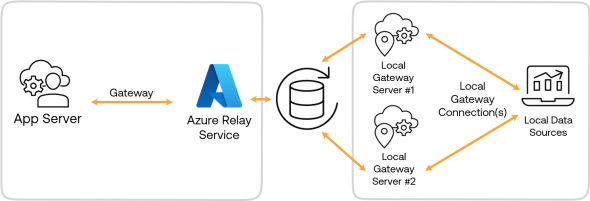
Incoming connections are balanced between the available Local Gateway Servers.
-
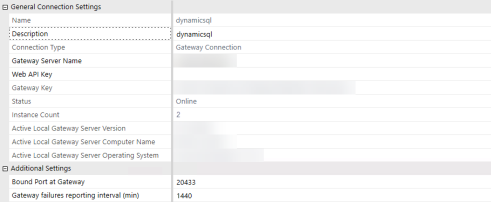
The first Local Gateway Server to establish a connection to the Relay is displayed in the Active Local Gateway Server Computer Name field in the Smart Integration Connector Admin setup.
-
The number of active gateways is displayed in the Instance Count field.
NOTE: To set up local gateway servers for multiple environments, you must create a new server for each environment by following the steps in Local Gateway Server Installation.
Create a Load Balanced Local Gateway Server
To create a load balanced Local Gateway Server:
-
On the first Windows Server, complete installation on the initial Local Gateway Server and verify all data connections transfer data.
-
After all connections have been verified on the first Windows Server export the configuration.
-
Open the OneStream Local Gateway Configuration.
-
Go to Tools > Export Configuration for Backup Gateway Server.
-
Choose the location and select Save.
-
-
On the second Windows Server in your environment, install the OneStream Smart Integration Connector Local Gateway Server (OneStreamSmartIntegrationConnectorGateway-#.#.#.#####.msi).
NOTE: If you are using custom DLLs, SAP, or referenced DLLs, you must copy the existing Referenced Assemblies Folder. Locations must be in sync and in the same location on the primary server. See Smart Integration Additional Settings.
-
On the second server, perform the following steps:
-
Open the OneStream Local Gateway Configuration.
-
Go to Tools > Import Configuration from Primary Gateway Server.
-
Choose the location of the export file and select Open.
CAUTION: You will overwrite the existing local gateway configuration. If you use Connection String Passwords, you will need to reenter a connection string password.
CAUTION: If you installed a custom database driver, you must install the customer database driver on the backup gateway server.
-
Click Local Gateway Connections.
-
Select a Data Source and the Connection String Passwords.
-
Select OK to provide a new Connection string.
-
Delete the encrypted text and replace it with a valid connection string from the primary server.
-
Select OK to encrypt the connection string and close the dialog box.
-
Repeat steps above for all the remaining data sources.
-
Click OK to close the Local Gateway Connections.
-
Click Save to save the Local Gateway Configuration.
-
Click Yes to restart the service.
-
Test the Smart Integration Connector Local Gateway Server in OneStream.
-
-
-
Verify the Instance Count is 2 when both the initial and second servers are running in the OneStream Windows application. The first Local Gateway Server to establish a connection to the Relay is displayed in the Active Local Gateway Server Computer Name field